Ever tried to email a video, only to have it fail spectacularly? It's a universal frustration. You think you're just attaching a file, but then you're hit with an error message. This isn't your fault; it's a built-in limitation of how email was designed.
Let's break down why this happens and what you can do about it.
Why Sending Videos by Email Is So Hard
You’d think sending a video would be as simple as attaching a photo, but it's a whole different ballgame. If you've ever tried to share a quick product demo or a team update and watched it bounce back, you're not alone. The problem lies with the strict file size limits most email services enforce.
The magic number is usually 25 MB. Providers like Gmail set this cap, and it hasn't budged in years. The catch? A simple one-minute video shot on your phone can easily be double or triple that size.
The Technical Barriers Behind Failed Sends
So, why the stingy limit? It comes down to performance. Email servers were built for quick, lightweight text messages, not for lugging around hefty multimedia files. When you try to force a large video through, it hogs bandwidth and storage space for both you and the recipient, slowing everything down.
This is why trying to attach a big video file directly often ends in frustration:
- Bounced Emails: The most common outcome. Your email is rejected flat-out and never even makes it to the recipient's inbox.
- Spam Filters: Large, unexpected attachments are a classic red flag for spam filters, meaning your important message might get buried.
- Stuck in the Outbox: The email just sits there, endlessly trying to send, only to fail hours later.
These aren't new problems. Gmail, for example, set its 25 MB limit way back in 2011, and it has defined how we share media ever since. In fact, large attachments can make an email up to 30% more likely to be flagged as spam.
Getting a handle on these technical hurdles is the first step. Once you understand the why, you can start to how to improve communication in the workplace by choosing a better method for sharing your videos.
Choosing Your Method: Cloud Links vs. Direct Attachments
So, you need to send a video through email. You've got two main ways to go about it: attach the file directly or share a link from a cloud service. The little paperclip icon might feel like the obvious choice, but it’s a path filled with surprisingly strict roadblocks that can stop your message from ever arriving.
Think of direct attachments as suitable only for the smallest of video files, like files under 25 MB. This is your five-second, low-resolution screen recording or a tiny animated GIF. Try sending anything bigger, and you're almost guaranteed to get a bounce-back error. Even if it manages to squeeze through, a large file can easily clog your recipient's inbox and set off spam filters.
Why Cloud Links Are the Modern Standard
This is where cloud storage links save the day. Using a service like Google Drive, Dropbox, or OneDrive is hands-down the better approach for almost every scenario. Instead of trying to cram a heavy video file into the email itself, you're just sending a lightweight link that points to the video's home online. This simple trick completely bypasses those pesky email size limits.
This decision tree breaks it down perfectly.
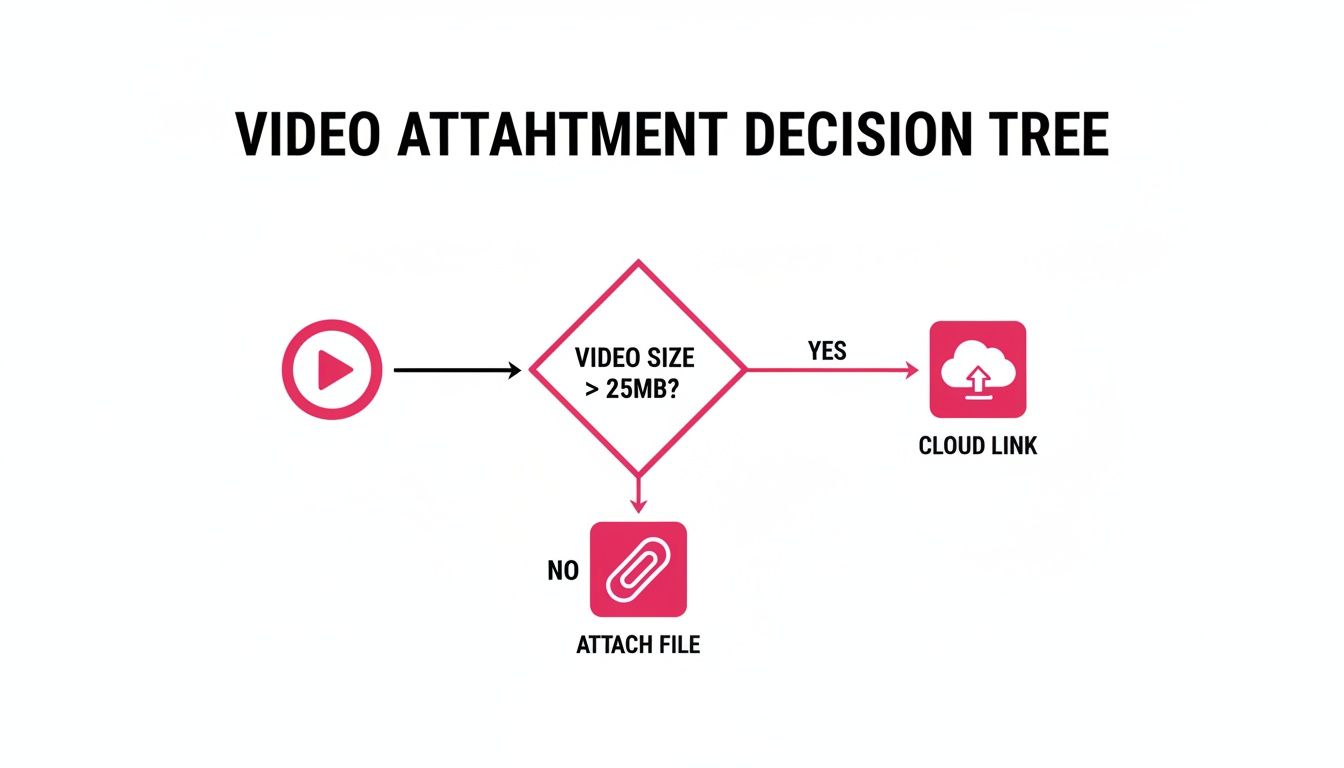
As you can see, file size is the key. If your video is over 25 MB, a cloud link isn’t just an option; it’s the only reliable way to go.
But the benefits don't stop there. Cloud sharing preserves your video's original quality, so it looks crisp and professional. It also saves your recipient from a massive download and gives you the ability to track views or even restrict access. For a developer sending a bug report or a manager sharing a team-wide update, a link is the professional standard. It’s a core part of modern communication, especially when you need to understand why async updates matter in a remote team.
My rule of thumb: When in doubt, just use a cloud link. It takes the guesswork out of the equation, guarantees your video gets delivered, and creates a much better experience for everyone involved.
To help you decide at a glance, here’s a quick comparison of the two methods.
Comparing Video Sharing Methods in Email
This table lays out the key differences between attaching a video file directly and sharing it via a cloud storage link. Use it to quickly see which method best fits your needs based on file size, security, and recipient experience.
| Feature | Direct Attachment | Cloud Storage Link |
|---|---|---|
| File Size Limit | Very strict (usually 20-25 MB) | Virtually unlimited |
| Delivery Success | Low for files >25 MB | Very high |
| Video Quality | Often requires heavy compression | Preserves original quality |
| Recipient Experience | Can clog inbox and take time to download | Simple, instant click-to-view |
| Security & Control | None after sending | Granular permissions control |
Ultimately, the choice is clear for most videos. While a direct attachment might work for a tiny clip, a cloud link offers a more reliable, professional, and flexible solution for sharing high-quality video content of any size.
Use a Cloud Storage Link to Send Your Video
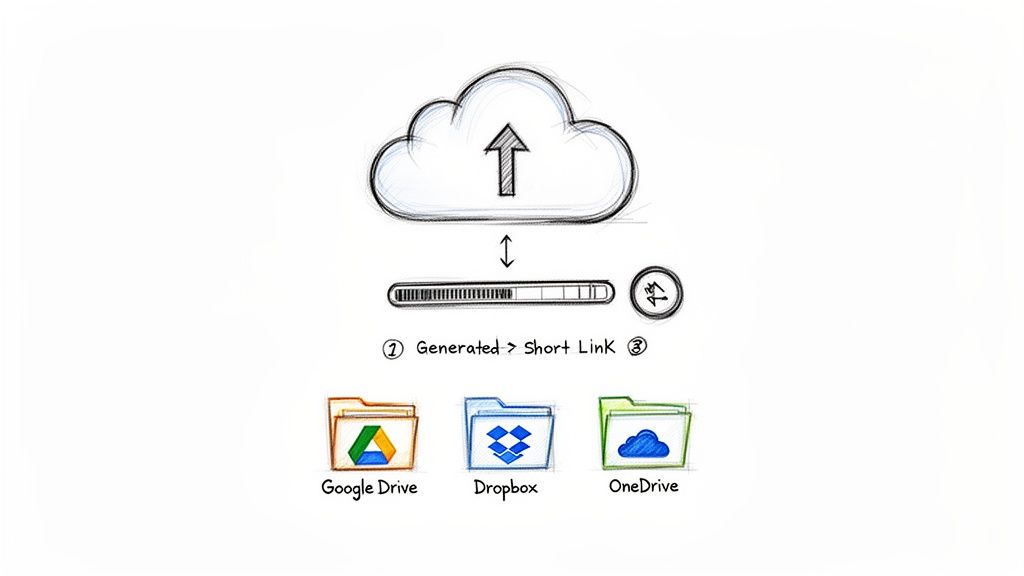
What happens when your video is just too big for a standard email attachment? This is where cloud storage services become your best friend. Instead of trying to cram a huge file through email servers (which often ends in a bounce-back message), you just upload the video and share a simple link. It's clean, fast, and guarantees your recipient can actually see what you sent.
Think of it this way: the video stays safe and sound in your cloud account, and your email is just a lightweight note telling your recipient where to find it. Let's walk through how to do this with the big three: Google Drive, Dropbox, and OneDrive.
Sharing with Google Drive
If you're a Gmail user, Google Drive is already part of your world, making this incredibly easy.
First, get your video into Drive. You can either drag and drop the file right into the browser window or use the "New" button to upload it.
Once the upload is complete, find the file and right-click on it. Go to "Share" and then choose "Get link." Now, here’s the crucial part: in the pop-up window, you have to change the access permission from "Restricted" to "Anyone with the link." This single click saves you from a frustrating back-and-forth of "I can't open it!" emails.
Finally, just copy that link and paste it into your email. Done.
Sharing with Dropbox
Dropbox has built its reputation on being simple and fast, and sharing videos is no exception.
The process is almost identical. Upload your video to your Dropbox account. When it's ready, just hover your mouse over the file, and a "Copy link" button will pop up. Click it.
By default, Dropbox creates a view-only link that anyone can access, which is perfect for this. Paste that link into your email, and you're good to go.
The most common pitfall I see is people forgetting to check the link permissions. Always make sure your link is set to "Anyone with the link can view." It's the one thing that will prevent a headache for both you and your recipient.
Sharing with OneDrive
If you live in the Microsoft ecosystem, OneDrive is the natural choice, and it works seamlessly, especially with Outlook.
It’s the same drill:
- Upload the video file to your OneDrive.
- Select the file and hit the "Share" button, usually found at the top.
- Check the link settings. You can get fancy and add an expiration date, but for most cases, just ensure "Anyone with the link can view" is active.
- Copy the generated link and drop it into your email.
No matter which service you prefer, using a cloud link is the modern, professional way to send videos. It doesn't clog up anyone's inbox, the video quality remains intact, and you never have to worry about your message getting rejected. For teams looking to build these kinds of sharing workflows into their own tools, the WeekBlast API documentation offers some great ways to automate asynchronous communication.
Getting Your Video Ready for Email
Before you even think about attaching that video, you need to make sure it's prepped for the trip. A few minutes of optimization can be the difference between a video that lands perfectly and one that gets rejected by the server. It all starts with making the file smaller.
This process is called compression. It's a bit like vacuum-sealing clothes for a suitcase; you're intelligently removing unnecessary data to shrink the file's size without a noticeable drop in quality. A well-compressed video looks almost identical to the original but is a fraction of the size, making it way easier to send.
Pick the Best File Format
The format of your video file matters a lot. You might have files ending in MOV, AVI, or WMV, but when it comes to email, MP4 is the gold standard. It’s universally supported by pretty much every device and email client out there.
Plus, MP4 strikes the perfect balance between great visual quality and a manageable file size. If your video isn't already an MP4, converting it is a smart move.
Use a Custom Thumbnail to Get More Clicks
Here’s a pro tip that can make a huge difference in whether your video actually gets watched: use a clickable thumbnail image. Instead of just dropping a plain text link to your Google Drive or Dropbox file, create an enticing preview.
Take a compelling still frame from your video, overlay a play button icon on it, and then link that entire image to where your video is hosted. This simple visual trick turns a boring link into an invitation to watch.
The data backs this up. Just adding the word "video" to an email subject line can boost open rates by 19%. Even better, using a clickable thumbnail has been shown to increase click-through rates by a whopping 65%. This is a powerful tactic, as explained in these video marketing statistics from Beehiiv.
Think of a great thumbnail as the movie poster for your video. It grabs attention and tells people exactly what they're about to see, making them far more likely to click play.
Taking these extra steps to compress, format, and present your video properly ensures it not only gets delivered without a hitch but also gets the views it deserves.
Still Have Questions About Sending Videos?
You've got the methods down, but sending videos through email can still feel a bit tricky. Let's tackle some of the most common questions that pop up so you can share your clips without a second thought.
What's the Real Limit for Video Size in an Email?
Practically speaking, you're looking at a hard stop around 20-25 MB for most major email providers like Gmail and Outlook. If you try to attach a video file larger than that, the server will simply reject it. This is exactly why sending a cloud storage link is the go-to solution for almost any video.
Can I Make a Video Play Directly Inside the Email?
While it sounds like a great idea, embedding a video so it plays right in the email is generally a bad move. For security reasons, the vast majority of popular email clients won't actually play it. Your recipient will likely just see a broken link or a static image that doesn't do anything.
Your best bet is to use a clickable thumbnail image. Just take a screenshot of an engaging frame from your video, pop it in the email, and link that image to where the video is hosted. This works every time, no matter what email app the other person is using.
Will Compressing a Video Ruin the Quality?
Not if you do it right. Modern compression software is surprisingly good at shrinking file sizes without making your video look terrible. For everyday business needs, like sending a screen recording or a quick product demo, a compressed video will look perfectly fine.
You can often slash the file size by more than 50% with a barely noticeable drop in visual quality. That makes the file way easier to manage, upload, and share.
Should I Use YouTube or Google Drive to Share My Video?
This really boils down to your goal. Who needs to see this video, and why?
For private or internal sharing: Use a service like Google Drive or Dropbox. It's the professional choice when you need to control access, like sending a draft proposal to a client or sharing a training video with your team.
For public-facing content: Use YouTube. It’s built for maximizing reach and engagement. If you want the world to see your video, YouTube is the way to go.
For a quick update to your team, a private cloud link is definitely the better, more secure choice.
Stop losing track of your progress. WeekBlast is a simple, high-speed work log that replaces tedious status meetings with a clear, searchable changelog of your accomplishments. Capture your wins in seconds and give your team the visibility they need without the pings. Learn more about WeekBlast here.


